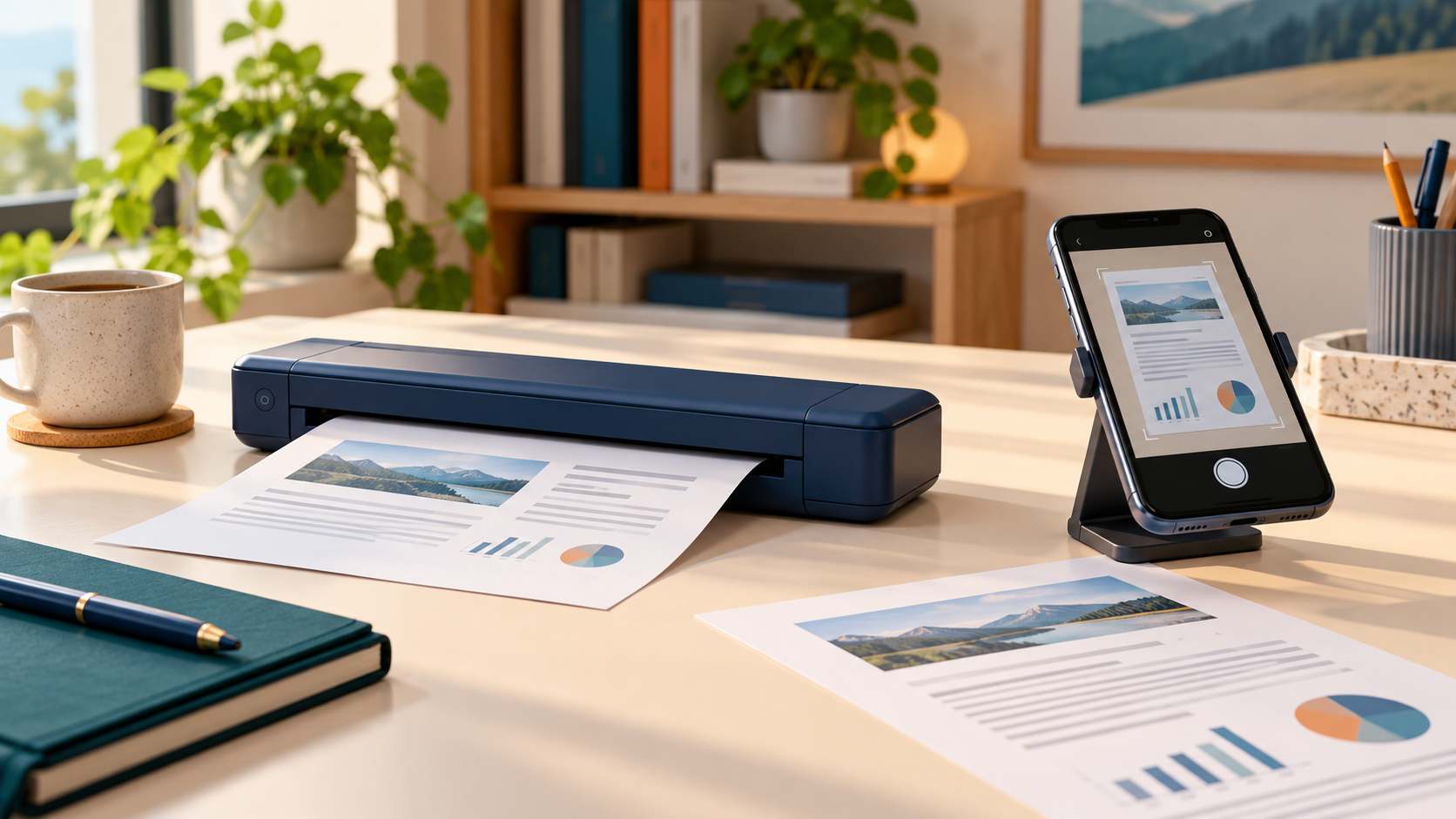
Some portable printers can scan and copy, but many are designed only to print. Confirm the functions of the exact model, then check how it handles your originals and where the scanned files can go. A mobile printing app alone does not prove that the printer has scanner hardware.
This research-based guide explains what to verify. It compares documented features, not measured scan quality or a tested ranking of products.
Separate printing, scanning and copying
Printing starts with a digital file and produces paper. Scanning starts with a physical original and produces a digital file. Copying combines capture and printing to reproduce an original on paper. Decide which of these jobs you actually need at the point of work.
For example, printing an invoice already stored on a phone does not require a scanner. Turning a signed paper invoice into a PDF does. Making another paper copy of that signature adds a printing step. Describing the task this way prevents a broad “mobile office” label from standing in for a function list.
Two documented product examples
HP lists print, copy and scan functions for the US OfficeJet 250 Mobile All-in-One. Its specifications describe a sheet-feed scanner and an automatic document feeder holding up to 10 sheets. Canon’s US TR160 specification lists printing and mobile printing functions; it does not include built-in scanning or copying.
These examples illustrate why the model matters. They are not recommendations about current stock, pricing or scan performance. A product line name or a picture of a phone next to a printer cannot replace the manufacturer’s function list.
Check how the original enters the scanner
Look for a scanner type, supported original sizes and loading instructions. A sheet-feed scanner feeds an original through a paper path. Do not assume it can handle bound books, unusually thick material or every original that fits its width. Confirm the permitted originals in the manual.
Then check how your everyday documents would be processed. If you capture multipage forms, ask about feeder capacity, page order and the steps needed for two-sided originals. An automatic feeder does not, by itself, establish automatic two-sided scanning.
Distinguish a camera-scan app from a built-in scanner
For this buying checklist, camera scanning means capturing the original with a phone’s camera. Built-in scanning means the printer’s scanner hardware captures it. Both can be part of a document workflow, but they are different arrangements.
If a listing advertises scanning through an app, ask one precise question: “What hardware captures the original?” Next ask how the result is saved and transferred. That helps reveal whether the offer matches your expectation of an all-in-one machine.
Confirm the output you need
Write down your required output: a single PDF, individual images, searchable text or a paper copy. Check which formats and software are supported for the intended device. A file type mentioned in desktop software specifications should not automatically be assumed available through a phone app.
Use a small acceptance checklist for a future demonstration: capture one representative original, check all edges, inspect small text, confirm the page order and open the saved file on the receiving device. This is a proposed check, not a test we have carried out.
Choose the setup around your documents
If scanning happens daily at customer sites, built-in capture may deserve a place on your essential feature list. If printing is frequent but capture is rare, compare the convenience of a separate capture workflow with the cost and carrying space of an all-in-one.
Keep the decision concrete: how many originals, which sizes, which destination and how often? Use those answers alongside our portable vs. compact printer guide and paper compatibility checklist.
Sources and scope
Examples verified on October 19, 2026 against HP’s US OfficeJet 250 specifications and Canon’s US TR160 specifications. We have not tested these products. Read our editorial approach.
Leave a Reply